FAB Online Banking Forgot Password — How to Reset It in Minutes (2026)
Forgetting your First Abu Dhabi Bank (FAB) online banking password is a small problem with a quick fix. You do not need to visit a branch, and you do not need to wait days: FAB lets you reset the password yourself from the online banking login page or from the FAB Mobile app, and the whole process usually takes a few minutes. This guide explains how to reset a FAB online banking forgot password step by step, what you need before you start, and what to do if your account is locked after too many wrong attempts.
Quick answer: To reset a forgotten FAB online banking password, go to the Personal Online Banking login page at bankfab.com, click “Forgot Password” (or “Unlock Account”), enter your User ID and registered mobile number, verify yourself with the one-time password (OTP) sent to your phone, and create a new password. FAB’s own service status page lists “Recover user ID or reset password” as available. If the app is already set up on your phone, you can also reset from the FAB Mobile app login screen using your Emirates ID.
Before You Start — What You Need
Have these ready before you begin, so the reset is not interrupted halfway:
- Your FAB online banking User ID. This is the username you chose when you registered for online banking. If you have forgotten the User ID as well, the same “Forgot Password” / “Unlock Account” flow includes a User ID recovery option — FAB’s service status page lists both as available.
- The mobile number registered with FAB. The verification OTP goes to this number by SMS. If you changed your number and never updated it with the bank, the OTP will go to the old number and the reset will fail — update the number first (see the FAQ below).
- Your Emirates ID (for the app method). The FAB Mobile app verifies your identity with your Emirates ID and a face scan during a password reset.
- A few quiet minutes. Do not start the reset on public Wi-Fi or on a borrowed device, and never type your password where someone can watch the screen.
One warning before anything else: FAB never asks for your PIN, OTP or password by phone, SMS, email or WhatsApp. If anyone contacts you claiming to reset your password and asks for any of those, it is a scam — hang up and call FAB yourself on 600 52 5500. Also type bankfab.com into your browser yourself; never follow a password-reset link sent by SMS or email.
Method 1 — Reset on the FAB Online Banking Website
This is the main method, and it works from any computer or phone browser. FAB’s online banking portal is at bankfab.com (portal host online.bankfab.com).
- Go to bankfab.com and open the Personal Online Banking login page.
- Click “Forgot Password” (or “Unlock Account” if that is the option shown). Both lead to the same recovery flow.
- Enter your User ID and your registered mobile number, plus any other details the page asks for.
- FAB sends a one-time password (OTP) by SMS to your registered mobile number. Enter it on the screen when asked.
- Create your new password, following the strength rules shown on the page, and confirm it by typing it a second time.
- Sign in with your new password to confirm the reset worked. If the login succeeds, the reset is complete.
If the page does not show a “Forgot Password” link, check that you are on the Personal Online Banking login page and not on a product or marketing page — the link sits on the login screen itself. And if the OTP does not arrive within a minute or two, check your signal, confirm the number on file is the one in your hand, and request a fresh code rather than guessing the old one.
Method 2 — Reset in the FAB Mobile App
If the FAB Mobile app is already installed and registered on your phone, the app route is often faster, because it can verify you with your Emirates ID instead of making you remember a User ID. The app is available on the App Store, Google Play and Huawei AppGallery.
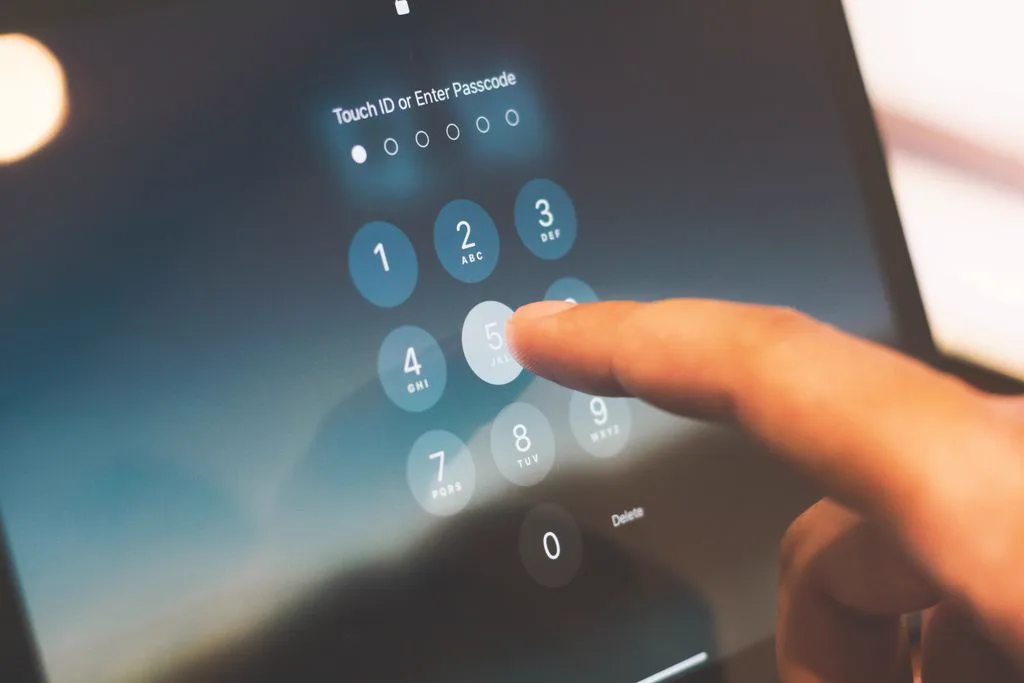
- Open the FAB Mobile app and tap “Forgot Password” on the login screen.
- Enter your customer or card number when asked.
- Verify your identity with your Emirates ID and a face scan, following the on-screen prompts.
- Set your new password and confirm it.
- Sign in with the new password to confirm the reset worked.
App menus change with updates, so follow the labels on your own screen rather than a fixed menu path — the “Forgot Password” link is on the login screen. If the app itself will not open or keeps crashing, use Method 1 in your phone’s browser instead, or call the bank (Method 3).
Method 3 — Call FAB or Visit a Branch
If neither self-service route works — the OTP never arrives, your registered mobile number has changed, or your identity cannot be verified online — a person at the bank can help.
- Call FAB customer care on 600 52 5500 from inside the UAE, or +971 2 681 1511 from outside the UAE.
- Tell the agent you have forgotten your online banking password and cannot reset it online.
- Answer the agent’s verification questions. The bank confirms your identity before discussing your account — a genuine agent never asks for your PIN, OTP or password.
- Follow the agent’s instructions to reset the password or unlock the account. Note down any reference number the agent gives you.
A branch visit works the same way: take your original Emirates ID (not a photo of it) to any FAB branch and ask for a password reset. The branch route is the slowest of the three, so use it only when the website, the app and the phone line have all failed.
Which Reset Method Should You Use?
| Method | What you need | Best when |
|---|---|---|
| Online banking website | User ID + registered mobile (OTP) | You are at a computer, or the app is not installed |
| FAB Mobile app | Customer/card number + Emirates ID + face scan | The app is already on your phone |
| Phone banking (600 52 5500) | Emirates ID details + account answers | OTP never arrives, or your mobile number changed |
| FAB branch | Original Emirates ID | All online routes have failed |
For most people, the website or the app finishes the job in minutes. The phone line is the right choice when the problem is the registered mobile number itself, because only the bank can fix that. The branch is the last resort.
Account Locked After 3 Wrong Attempts?
This is the most common reason a reset becomes urgent: you typed the password wrong a few times, and now the account will not let you in at all. FAB’s own security page states that an online banking account is locked out after 3 unsuccessful attempts, and that the customer needs to call FAB customer care so the account can be unlocked after due verification.

So if your account is locked, do not keep guessing the password — every further wrong attempt only extends the problem. Instead:
- Use the “Unlock Account” option on the online banking login page, which runs the same recovery flow as “Forgot Password” — User ID, registered mobile, OTP, new password.
- If the unlock flow does not work, call 600 52 5500 and ask the agent to unlock the account. The agent will verify your identity first.
- Once you are back in, choose a new password you can actually remember (see the tips below), and consider turning on biometric login in the app — fingerprint or face ID — so a forgotten password cannot lock you out again.
A locked account does not mean your money is gone or your account is closed. It is a security hold, and it is removed once the bank has verified you are the account holder.
Still Need Your Balance While You Are Locked Out?
A forgotten password blocks online banking, but it does not block every way of checking your money. While you wait for the reset, you can still check your balance another way:
- SMS banking: text
BALfollowed by the last 4 digits of your account number to 2121 — the short code is confirmed on bankfab.com, and theBALformat is the one used by the large majority of independent UAE guides. - FAB ATM: insert your debit card, enter your PIN and choose Balance Inquiry. FAB ATMs are free for this; other banks’ ATMs charge AED 1 per balance enquiry.
- Phone banking: call 600 52 5500 and check the balance after verification.
- The FAB Mobile app, if you are still signed in on your phone — the app can stay logged in even while the website password is forgotten, and it shows balances on the home screen after biometric login.
Our FAB online banking guide explains all the login and balance-check options in one place, and our FAB balance check by phone guide covers the phone route in detail.
Choose a Strong New Password (and Remember It)
A reset is also a chance to fix the password itself. A weak password is usually why the account was at risk in the first place.
- Make it long, not clever. A passphrase of four unrelated words beats a short password full of symbols you cannot remember.
- Never reuse your FAB password anywhere else. If another website leaks, your bank login goes with it.
- Do not use your birthday, phone number, Emirates ID number or “FAB123”. These are the first things anyone guesses.
- Write it down safely, not on your phone’s notes. A password kept in a locked drawer at home is safer than one saved in an unprotected note or photo.
- Change it again if you ever shared it. If anyone — a helper, a colleague, a family member — has seen your password, reset it the moment they no longer need it.
- Turn on biometric login in the app after the reset, so your fingerprint or face opens the app and the typed password matters less day to day.
And remember the golden rule for the rest of your banking life: the bank will never ask for your password, PIN or OTP — not on a call, not by SMS, not by email, and not on WhatsApp. FAB does not offer balance checks or password resets over WhatsApp at all; any WhatsApp message offering one is fraudulent. Report suspected fraud to FAB at atyourservice@bankfab.com or by calling 600 52 5500.
Frequently Asked Questions
This is an independent informational guide. We are not affiliated with, endorsed by, or connected to First Abu Dhabi Bank (FAB). Always confirm balances, fees and procedures through FAB’s official channels at bankfab.com or by calling 600 52 5500.